 Tiraz
Arabic Fonts for Photoshop and Adobe, and How to Type Arabic Correctly
The most common problem with Arabic in Adobe apps is disconnected letters or reversed words, and the cause is one setting, not the font. Here is how to fix it, Adobe's own Arabic fonts, and free fonts that work in them.
Why are Arabic letters disconnected in Photoshop?
Photoshop uses its Latin text engine by default, which neither joins Arabic letters nor writes right to left. Turn on the Middle Eastern engine once:
- Open Preferences → Type and choose World-Ready Layout (Middle Eastern and South Asian in older versions).
- Close the file and open a new one so the setting applies.
- From the Paragraph panel menu, choose Middle Eastern & South Asian Every-line Composer.
- Set the paragraph direction to right-to-left in the Paragraph panel.
In Illustrator: Preferences → Type, turn on the Middle Eastern and South Asian options, then pick the same composer from the Paragraph panel menu.
Adobe's Arabic fonts
Adobe Arabic and Adobe Naskh are Naskh fonts from Adobe, clear for text and headlines. Preview them here with your own text before you use them:
Free Arabic fonts that work in Adobe apps
These fonts are open source under the OFL license. Download them free from Google Fonts and install them, and they appear in Photoshop, Illustrator, and InDesign:
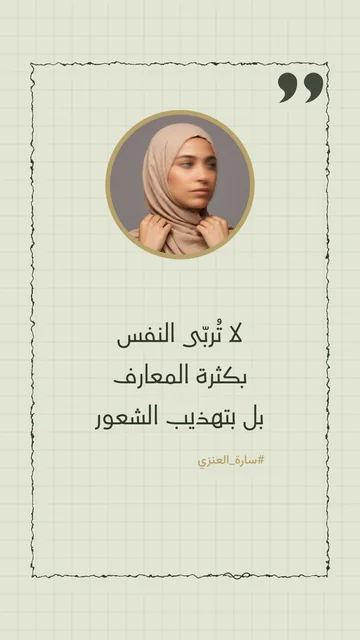
Or design without installing anything
Tiraz has 600+ Arabic and Latin typefaces that download the first time you use them. Arabic joins and runs right to left with no setup, and kashida lands at the word's joint like a calligrapher's. Browse every font and try your text in each.
Start a new design
Download Tiraz from the App Store, tap the gold + at the bottom, and choose Blank and a size, or From Photo to start with your picture. Ready sizes include post, story, square, and video, and All Sizes holds the print formats. Start at the size you'll publish in so you don't have to rearrange the design later.
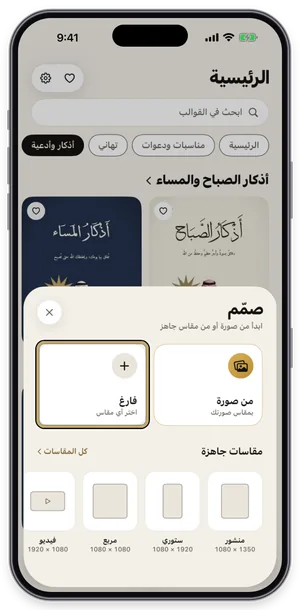
The Create sheet: a blank page or a photo, with ready sizes. Choose the font
With the text selected, open Fonts, switch to the Modern tab and try fonts while seeing your own word in each one. Fonts with a crown are part of Tiraz Gold, and a font downloads the first time you use it. Keep to two fonts: a calligraphic one for names and a clear one for details.
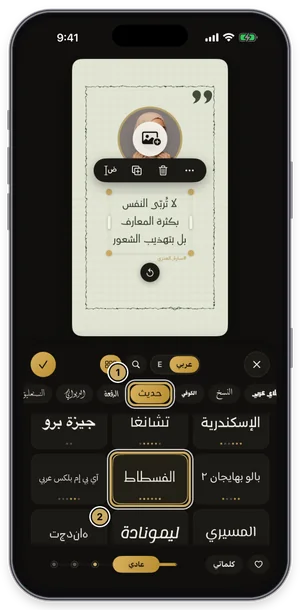
The fonts panel on the Modern tab: the current font is outlined in gold. Export or share the design
Tap the gold share button at the top of the editor to open Export: a full-size PNG for free, and a print PDF, 4K, and transparent backgrounds with Gold. Tap Share to send it straight to WhatsApp, or Save to keep it in Photos. For a print shop always choose PDF; a phone image prints soft.
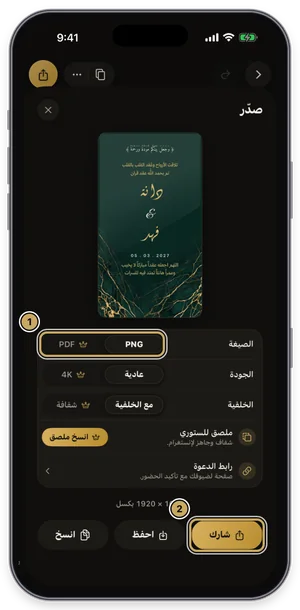
The export sheet: format, quality, and background, then share or save.
Common Questions
How do I type Arabic in Photoshop without broken letters?
What is the best Arabic font for Photoshop?
Can I stretch Arabic letters in Photoshop?
More Articles
- Nikah in Arabic Calligraphy: Fonts, Wording, and Design
- Arabic Condolence Messages, Thank-You Wording, and Ready Cards
- Quran Fonts: Hafs and Warsh for Writing Verses
- Types of Arabic Calligraphy, and When to Use Each One
- Free Arabic Fonts for Design and Commercial Use
- Arabic New Baby Wishes and Birth Announcement Cards
- Arabic Wedding Invitation Wording and Formal Templates
- Arabic Graduation Wishes and Graduation Party Invitations
- Ramadan and Eid Greetings in Arabic, and Greeting Cards
- An Invitation Design App with Arabic Calligraphy: How to Choose and Design
- Designing a Digital Invitation with a Link and RSVP
- An App for Writing in Arabic Calligraphy on iPhone
- Arabic Fonts on iPhone: What Actually Works
- An Arabic Name Decoration App: Your Name in Ornate Calligraphy
- Designing a Ramadan 2027 Imsakiya
- Designing a Named Greeting Card on Your Phone
- A Canva Alternative for Arabic Design: An Honest Comparison
- All Articles →
Design your next invitation in Tiraz
Gulf-inspired templates, authentic Arabic calligraphy, and print-quality export, right from your phone.