 Tiraz
Designing a Digital Invitation with a Link and RSVP
A digital invitation is no longer just an image sent on WhatsApp. It can be a page with your design, a countdown, the venue on a map and a button for guests to RSVP. This article explains the kinds of digital invitations, which suits your event, and how to design and send one from your phone with Tiraz.
Create Your Digital Invitation
Kinds of digital invitation
- An image: the simplest and quickest, shared in chats and stories, but it tells you nothing about who's coming, and the time and place get lost in the thread.
- A video: eye-catching, but heavier to send, needs an editing app, and collects no replies.
- An invitation link: a web page with the design and details; the guest opens it and accepts or declines, and you see the count.
Most people now combine the first and third: a beautiful image for stories and a link for details and RSVP. Tiraz makes both from one design; video isn't what it does, so use an editing app alongside it if you want one.
What a Tiraz invitation page contains
- Your design itself, at full quality.
- A countdown to the event.
- The venue on a map with a button for directions.
- An Add to Calendar button so guests don't forget.
- Accept and decline buttons, with the count arriving in the app.
With Tiraz Gold, every confirmed guest receives a coded entry ticket for Apple Wallet, scanned at the door by you or whoever you send the scanner link to, even offline, so you know who actually came.

Steps to design a digital invitation
Open the engagement templates
Download Tiraz from the App Store, then on Home tap the title of the engagement shelf to see all its templates; you can also browse them first in engagement templates. Templates with a crown are part of Tiraz Gold, the rest open for free. Pick the design closest to your taste, since every text and color in it can change afterward.
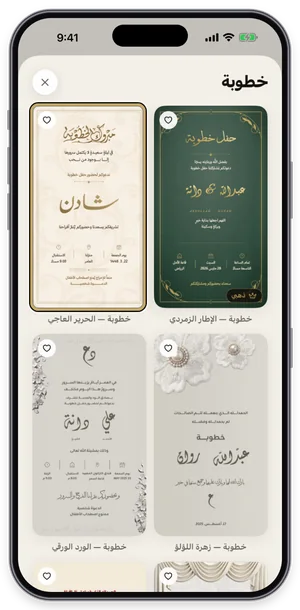
The engagement shelf in Tiraz: tap a template to open it in the editor. Type the names and details
Double-tap the text you want to change to open the text editor, replace the sample name («دانة») with yours and tap ✓. Change each text separately and keep its line breaks, so the template keeps its layout. The usual mistake is pasting a whole paragraph into one text, which shrinks the type and breaks the design.
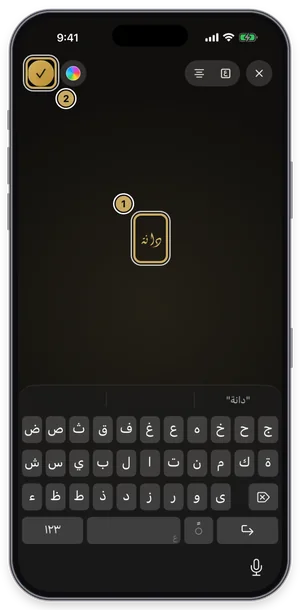
The text editor: type your name over the sample name, then tap ✓. Write the date in Hijri and Gregorian
Select the date text and open Date (or add a new date from the toolbar), pick the day and choose Hijri, Gregorian, or both, adding the weekday and time if you like. Tiraz calculates Hijri with the Umm al-Qura calendar, so there's nothing to convert yourself. Double-check the day you picked; date mistakes are the most common error on cards.
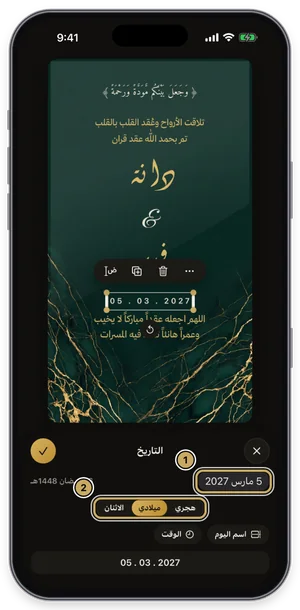
The date panel: Hijri, Gregorian, weekday, and time. Create the invitation link
From the export sheet choose Invitation Link; Tiraz reads the occasion's name from your design, and you complete the host, day, time, and the venue on a map. Leave Ask Guests to RSVP on, then create the link. The free plan allows one live occasion whose page stays up until a week after the day; Gold gives unlimited invitations.
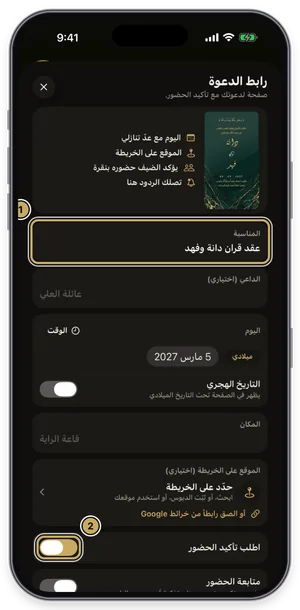
The invitation link form: occasion, host, day, venue, and RSVP. Share the link and follow the replies
Once published, your link appears on tiraz.app; copy it or share it on WhatsApp. The same sheet shows how many are coming, who declined, the total guests, and page views, with each guest's name and note. With Gold, turn on attendance tracking so every guest gets an entry ticket scanned at the door.
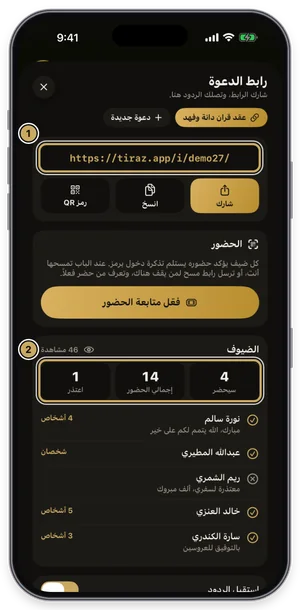
A published invitation: the link, the guest counts, and replies (sample names).
 Open Template →
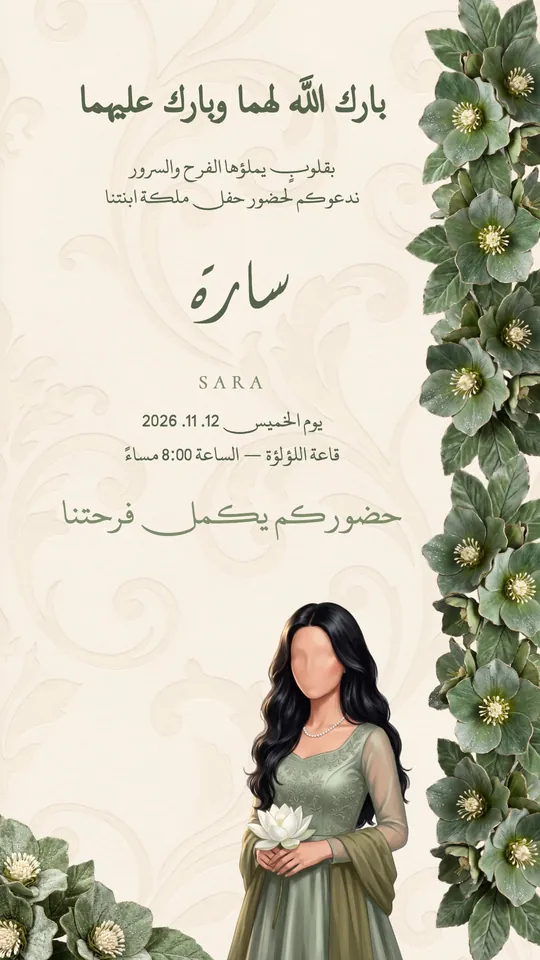 Open Template →
 Open Template →
 Open Template →
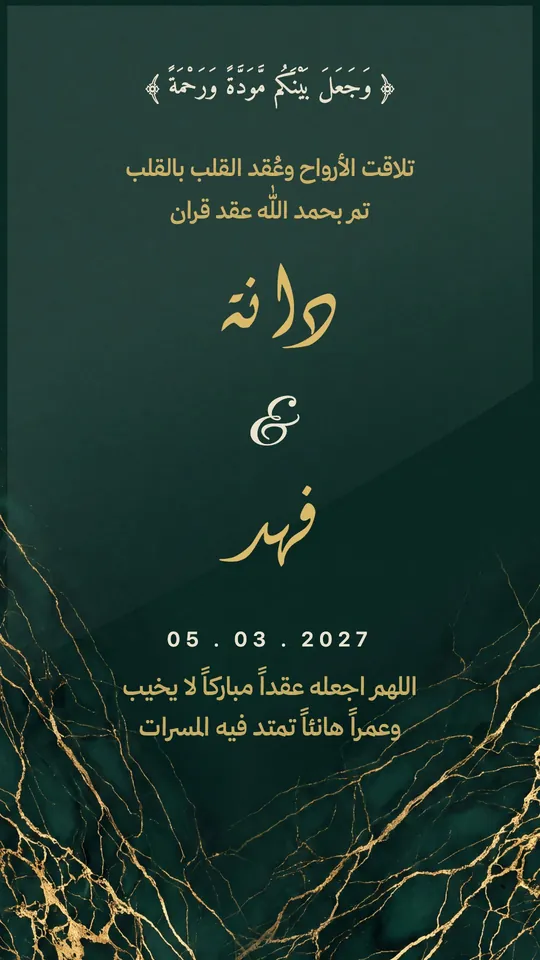 Open Template →
 Open Template →
 Open Template →
 Open Template →
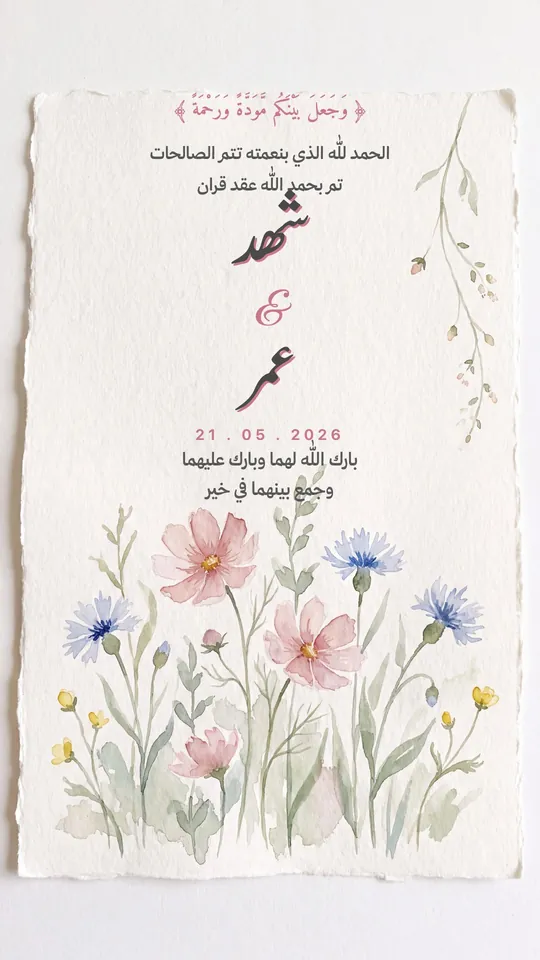 Open Template →
 Open Template →
 Open Template →
 Open Template →
 Open Template →
 Open Template →
 Open Template →
 Open Template →
What a guest sees when opening the link
- They open the link from WhatsApp in their phone's browser, with no app or sign-up.
- They see the full invitation design and a countdown to the event.
- They tap the map to get directions to the venue.
- They add the date to their calendar in one tap.
- They accept or decline, and the reply reaches you in the app.
A digital invitation for every occasion
- Weddings: one for men and one for women if the venues differ, each with its own link.
- Nikah: a limited family list, where knowing who's coming matters most.
- Dinners: knowing the count lets you plan the catering accurately.
- Graduations and birthdays: a cheerful page with the guest of honor's photo.
- Events and conferences: with Gold entry tickets you know who actually attended.
The message to send with the link
السلام عليكم، يسعدنا دعوتكم لحفل زواج …، وتجدون التفاصيل وتأكيد الحضور في الرابط:Peace be upon you; we're delighted to invite you to …'s wedding. Details and RSVP are in the link:
حياكم الله، هذه دعوة عشاء يوم …، نرجو تأكيد حضوركم من الرابط حتى نستعد لكم:You're most welcome; here's a dinner invitation for …. Please RSVP through the link so we can prepare:
بكل حب ندعوكم لمشاركتنا فرحتنا، والتفاصيل هنا:With love we invite you to share our joy; the details are here:
Entry tickets and door scanning
- Turn on attendance tracking when publishing the invitation (part of Tiraz Gold).
- Every guest who accepts receives a coded ticket to add to Apple Wallet.
- At the door, scan tickets yourself or send the scanner link to whoever greets guests.
- Scanning works even offline, and afterward you know who actually came and who arrived without replying.
Tips for a digital invitation that works
- Make the names and date the clearest things in the design; guests read on a small screen.
- Don't put in the image what the page already has; the map and RSVP belong in the link.
- Send the link two to four weeks ahead, then remind guests the day before.
- If the men's and women's venues differ, publish a separate invitation and link for each.
- Add a personal line before the link in your message; a bare link feels automated.
A quick comparison
- Paid e-invitation sites: they offer pages and RSVP, but most charge per invitation and their Arabic designs are limited.
- Google Forms or surveys: free for collecting replies, but separate from the design and not fit for a wedding.
- Tiraz: Arabic calligraphy design, invitation page, and RSVP in one app. Free gives one active invitation whose page stays until a week after the event; Gold gives unlimited invitations, lasting pages, and entry tickets. iPhone only for now.
Common Questions
How can I design a digital invitation for free?
Do guests need to install the app?
Can I see how many are coming?
Can Tiraz make a video wedding invitation?
Does the invitation page stay up after the event?
Does the link open on Android?
Can I send the invitation to a WhatsApp group?
More Articles
- Nikah in Arabic Calligraphy: Fonts, Wording, and Design
- Arabic Condolence Messages, Thank-You Wording, and Ready Cards
- Quran Fonts: Hafs and Warsh for Writing Verses
- Arabic Fonts for Photoshop and Adobe, and How to Type Arabic Correctly
- Types of Arabic Calligraphy, and When to Use Each One
- Free Arabic Fonts for Design and Commercial Use
- Arabic New Baby Wishes and Birth Announcement Cards
- Arabic Wedding Invitation Wording and Formal Templates
- Arabic Graduation Wishes and Graduation Party Invitations
- Ramadan and Eid Greetings in Arabic, and Greeting Cards
- An Invitation Design App with Arabic Calligraphy: How to Choose and Design
- An App for Writing in Arabic Calligraphy on iPhone
- Arabic Fonts on iPhone: What Actually Works
- An Arabic Name Decoration App: Your Name in Ornate Calligraphy
- Designing a Ramadan 2027 Imsakiya
- Designing a Named Greeting Card on Your Phone
- A Canva Alternative for Arabic Design: An Honest Comparison
- All Articles →
Design your next invitation in Tiraz
Gulf-inspired templates, authentic Arabic calligraphy, and print-quality export, right from your phone.